
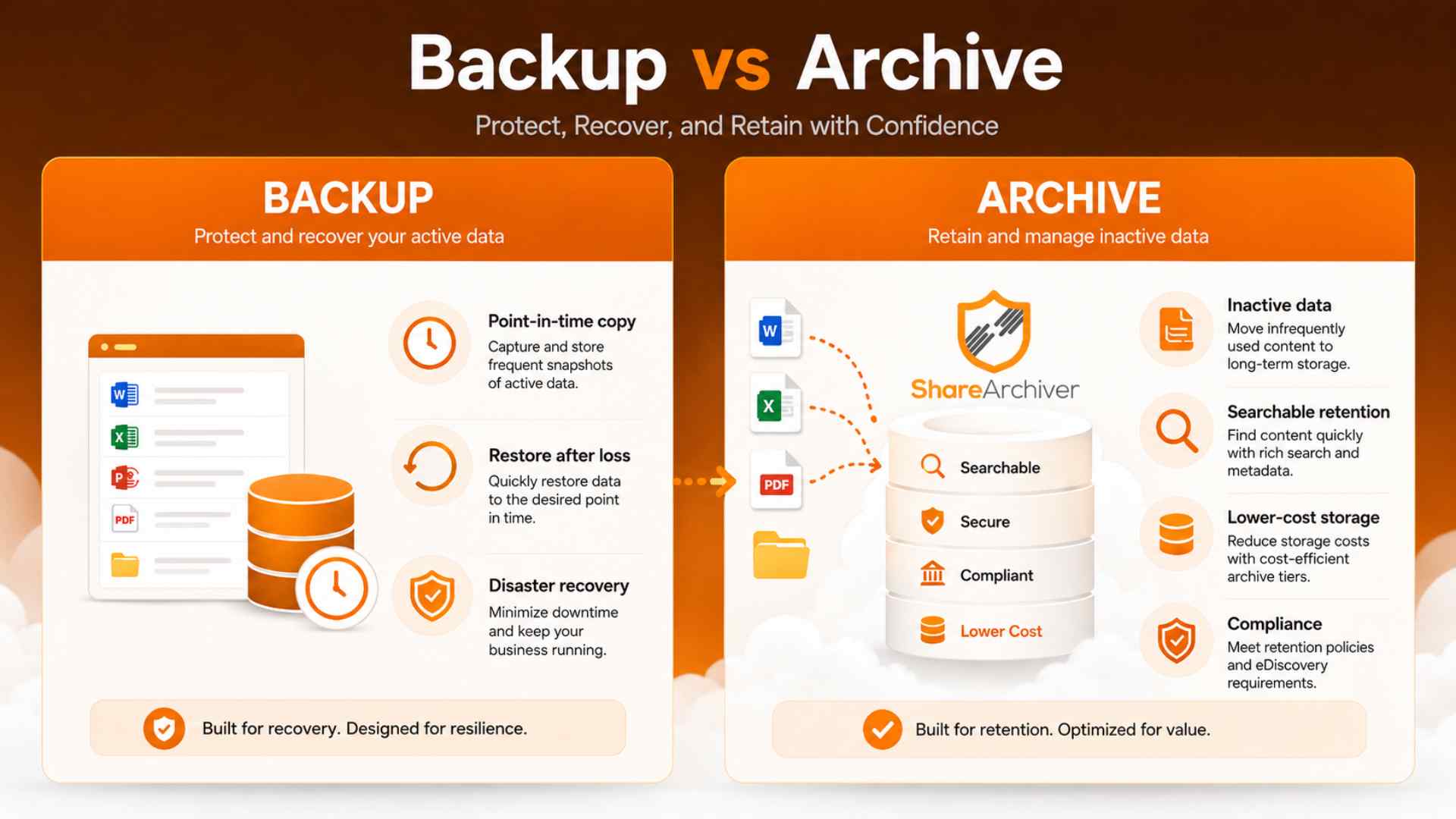
Most IT teams understand the importance of protecting SharePoint data. The problem is that “archiving” and “backup” are often treated as if they solve the same problem.
They do not.
A SharePoint backup protects your organisation from data loss. SharePoint archiving helps you manage inactive data, reduce storage costs, support retention policies and keep old content accessible without leaving everything in expensive active SharePoint storage.
When the two are confused, organisations often end up paying more for storage than they need to, struggling to retrieve critical data during legal or compliance requests, and relying on backup systems for tasks they were never designed to handle.
This guide explains the difference between SharePoint archive vs backup, when to use each one, and how to build a data management strategy that protects your organisation without increasing unnecessary storage costs.
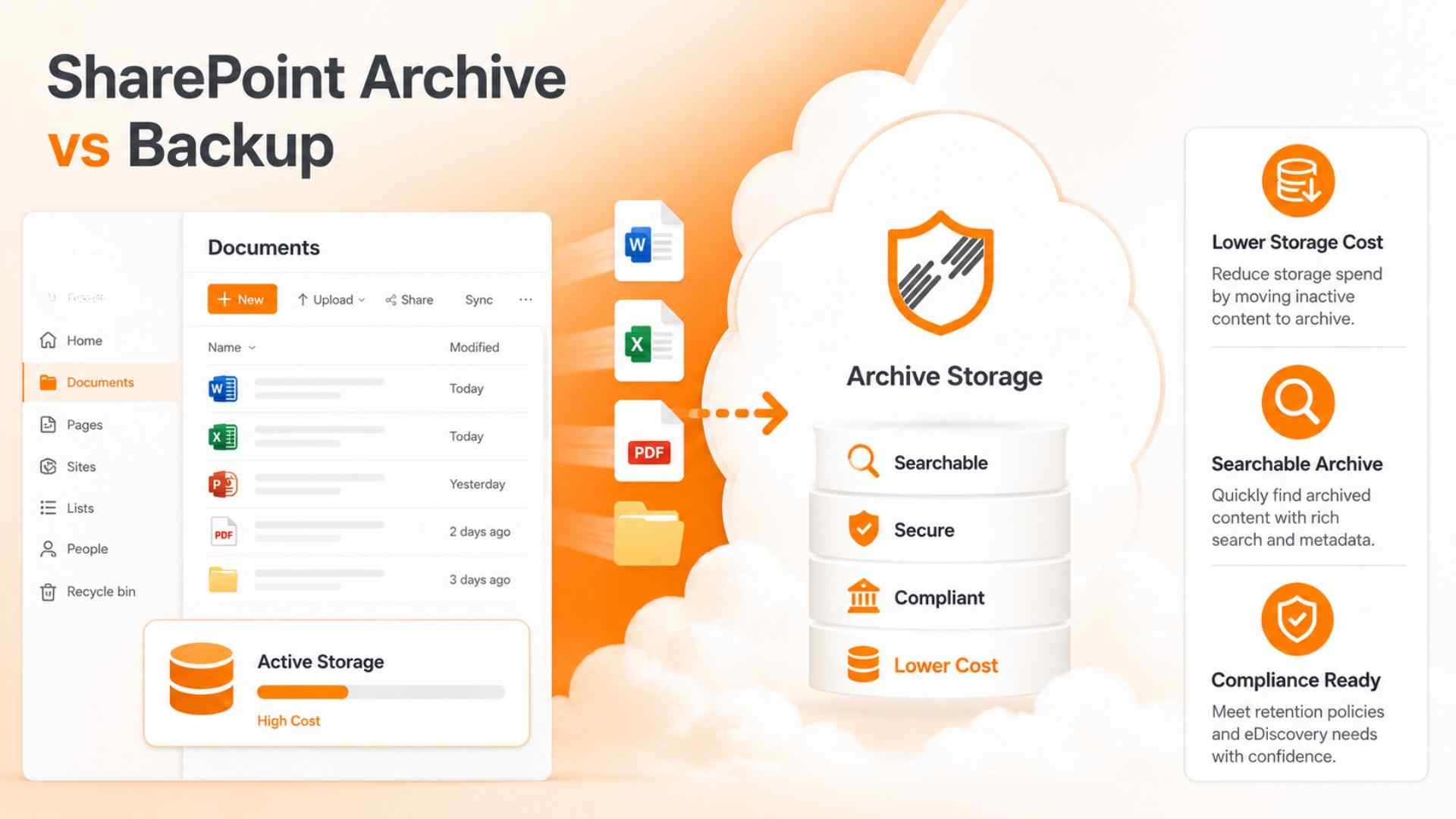
A SharePoint backup is a point-in-time snapshot of your data — a copy made so you can restore your environment if something goes wrong. It is a core data protection measure that supports business continuity. Backups are designed for disaster recovery, including incidents caused by human error or data corruption. They answer the question: “If we lose this data right now, can we get it back?”
Backups are essential. But they come with limitations that many IT teams don’t anticipate:
- They grow fast. Every backup cycle adds volume. Daily backups of a 10TB SharePoint environment compound quickly.
- They’re not built for retrieval. Finding a specific version of a specific document from six months ago inside a backup set is slow and painful. Backups are built to restore data, not find individual files.
- They don’t satisfy compliance requirements. Regulators don’t care whether your backup ran last night. They care whether you can produce specific records, prove a document wasn’t tampered with, and demonstrate it was retained according to policy.
SharePoint archiving is the process of moving inactive data — files that haven’t been accessed in months or years — out of your primary SharePoint storage, through online archiving, into cheaper storage, while keeping it fully accessible and searchable.
Archiving answers a different question: “What should we do with data we don’t use every day but still need to keep?”
A well-implemented archiving strategy does three things:
Reduces storage costs by moving cold data out of expensive, active storage into more cost effective archive storage tiers
Maintains accessibility — users can still open archived files, often without knowing they’ve been archived at all
Supports compliance — archiving ensures long-term retention of archived content and supports regulatory requirements, including retention policies, legal holds, and eDiscovery queries, making it a compliance tool rather than a recovery mechanism
Side-by-Side Comparison
Feature | Archiving | Backup |
|---|---|---|
Primary purpose | Long-term retention of inactive data | Disaster recovery and data restoration |
Data access | Instant, seamless (with good tooling) | Slow — requires restore process |
Storage cost | Low-cost archive tiers (e.g., Azure Blob, S3) | Typically same or similar cost to primary |
Compliance support | ✅ Strong — supports retention policies, legal hold, eDiscovery | ⚠️ Limited — not designed for record-keeping |
Data immutability | ✅ Can enforce WORM (write once, read many) | ❌ Copies can be overwritten |
Searchability | ✅ Full metadata preserved (with proper tools) | ❌ Requires restore before search |
Protects against ransomware | ⚠️ Partial — depends on storage configuration | ✅ Yes — point-in-time restore |
Protects against accidental deletion | ⚠️ Depends on policy setup | ✅ Yes |
User visibility | Transparent (stub files) or hidden archive vault | Not visible to users |
Regulatory alignment | ✅ GDPR, HIPAA, SOX, eDiscovery-ready | ❌ Not purpose-built for compliance |
The bottom line: You need both — but for completely different reasons. Backup protects against data loss. Archiving manages data lifecycle and cost.
The Most Common Mistake: Treating Backup as an Archive
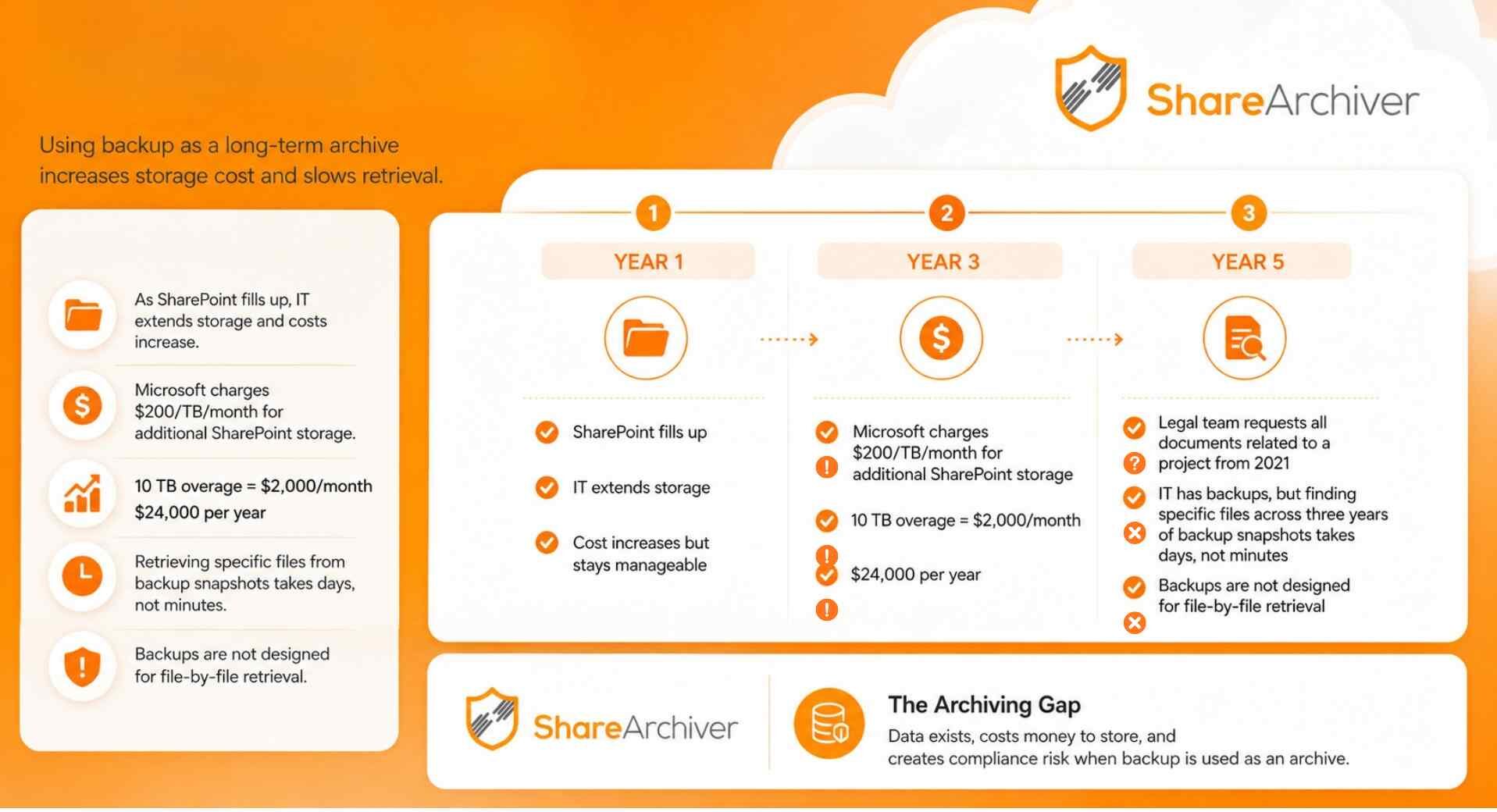
Here’s what typically happens in organizations without a clear archiving strategy:
Year 1: SharePoint fills up. IT extends storage. Cost increases but stays manageable.
Year 3: Microsoft charges $200/TB/month for additional SharePoint storage. A 10TB overage costs $2,000/month — $24,000 per year.
Year 5: Legal team requests all documents related to a project from 2021. IT has backups — but finding specific files across three years of backup snapshots takes days, not minutes. Worse, there’s no guarantee the documents haven’t been modified since backup.
This is the archiving gap: data that exists, costs money to store, and creates compliance risk — all because the right tool was never applied.
When Archiving Matters Most: Compliance Use Cases
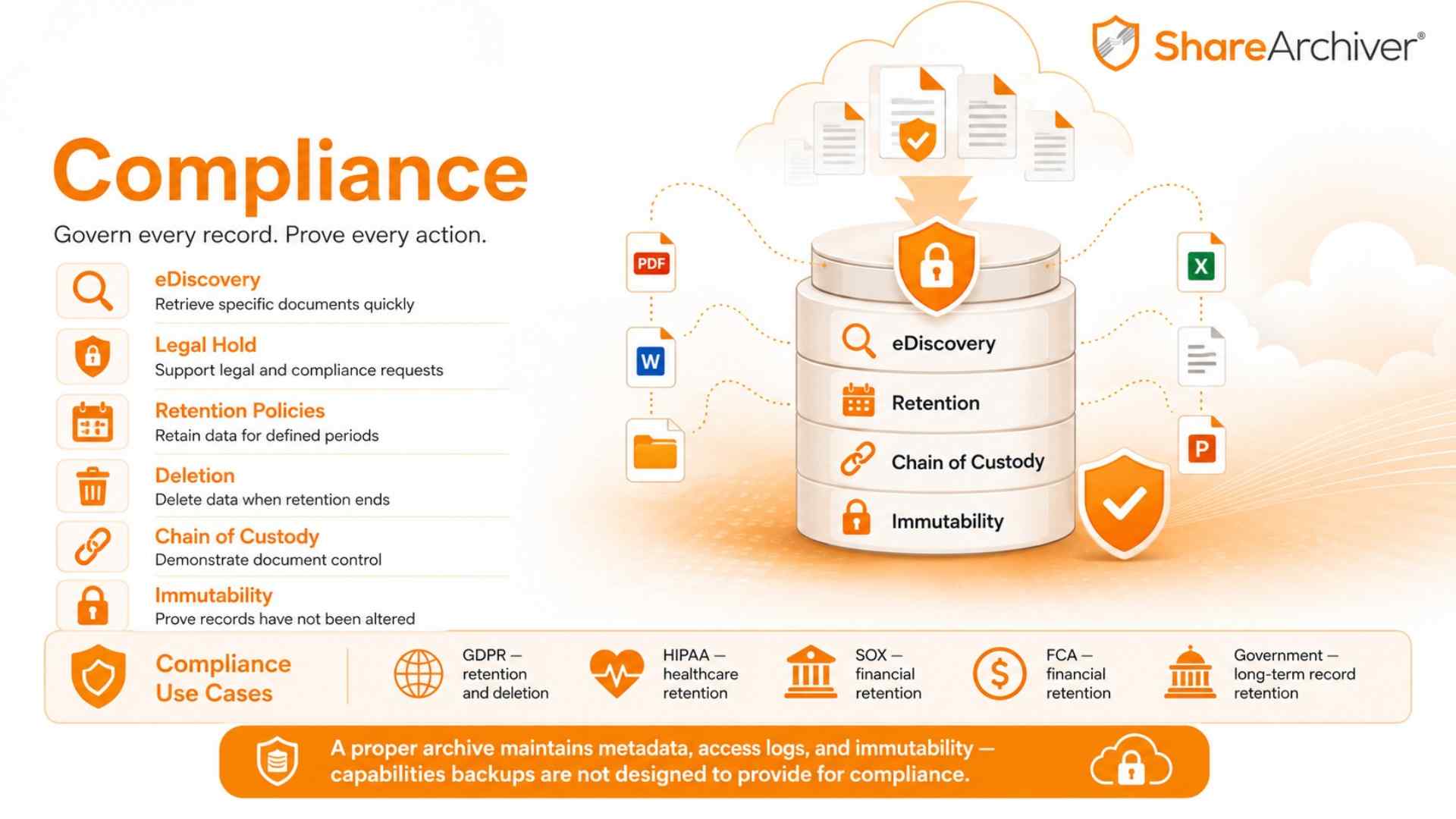
Compliance teams have requirements that backup simply cannot meet:
When litigation begins, legal teams need to retrieve specific documents quickly, prove they haven’t been altered, and demonstrate a chain of custody. A proper archive maintains metadata, access logs, and immutability — none of which a standard backup provides.
GDPR Retention and Deletion
GDPR requires you to retain certain data for defined periods — and delete it once that period ends. A backup keeps everything indefinitely unless you manually manage it. An archive with retention policies automates this correctly.
Industry Regulations
Healthcare organisations (HIPAA), finance (SOX, FCA), and government sectors all have document retention requirements measured in years. Archive solutions are designed for this; backups are not.
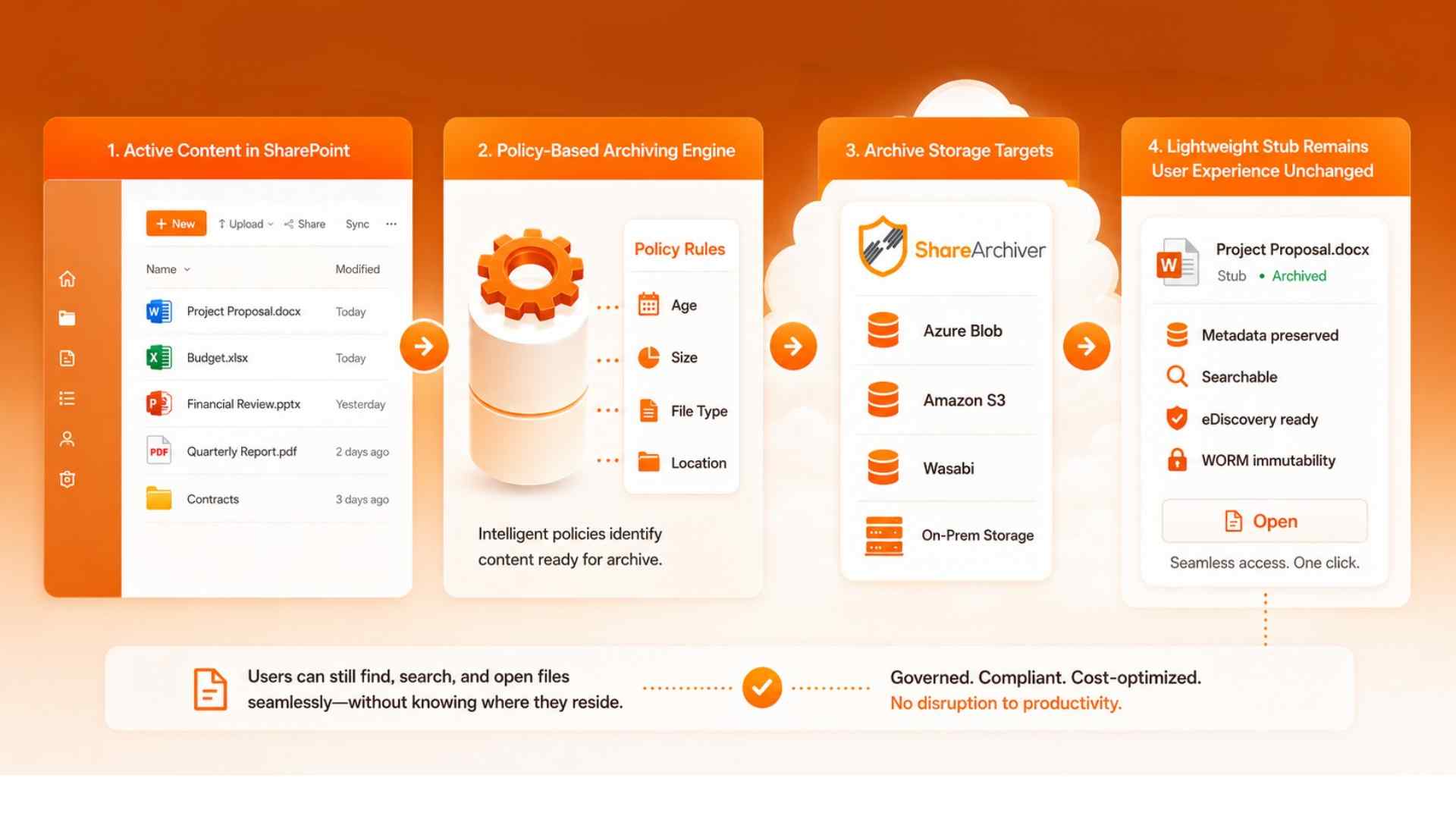
ShareArchiver’s SharePoint archiving solution works by identifying inactive files based on your policies — age, size, file type, folder location — and moving them to lower-cost storage while leaving a lightweight stub in the original SharePoint location.
To the user, nothing changes. They click the file, it opens. The difference is invisible on the surface but significant in terms of cost and compliance underneath.
Key capabilities:
Policy-driven archiving — set rules based on last-accessed date, file size, or folder
Storage agnostic — archive to Wasabi, Amazon S3, Azure Blob, or on-premises storage
Metadata preservation — all SharePoint metadata is retained, so files remain searchable
eDiscovery support — archived data is fully discoverable via ShareArchiver’s eDiscovery tools
WORM storage — enforce immutability for compliance with audit and legal requirements
Organisations using ShareArchiver typically reduce SharePoint storage costs by up to 80% while maintaining full compliance and zero disruption to end users.
Building Your Data Management Strategy
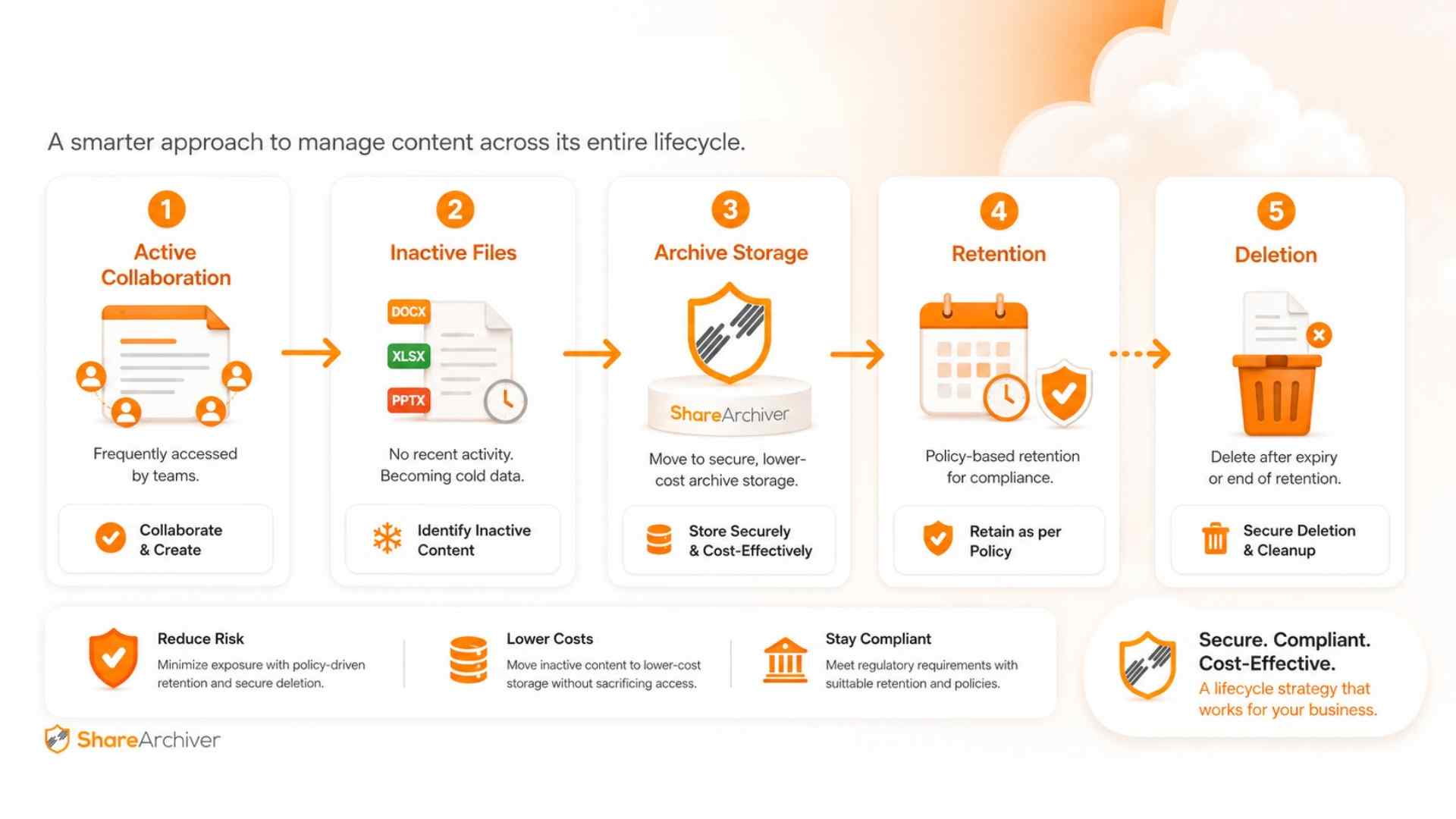
The question isn’t “archiving or backup?” — it’s “how do we use both correctly?”
A practical framework:
Keep in active SharePoint storage: Files accessed in the last 6–12 months. Current project documents. Anything in active collaboration.
Move to archive storage: Files not accessed in 12+ months. Completed project files. Regulatory records that must be retained but rarely accessed.
Backup everything: Your backup strategy should remain independent of archiving — it protects against accidental deletion, corruption, and ransomware regardless of where the file lives.