Data is paramount in the digital age, and its loss can be devastating. Fortunately, smart data recovery software is here to save the day.
Whether human error, hardware failure, or a malicious attack, these advanced tools are designed to retrieve and restore lost or inaccessible data.
They can often recover various file types from various storage devices.
This blog will delve deeper into the workings of such software, discussing their features, strengths, and weaknesses to help you make an informed decision.

As a sophisticated smart data recovery software, ShareArchiver stands at the forefront of disaster recovery solutions.
With a commitment to tackling intricate data recovery scenarios, this tool optimizes your recovery rates and provides a reliable recovery service with an intuitive interface.
Its advanced file recovery capabilities extend to various file types, even handling complex data recovery situations and inconsistent data recovery results.
With a remarkable graphical user interface design, you’ve ensured an efficient tool for successful data recovery, especially during human errors or drive failures.
Features
- Disaster Recovery Optimization
- File Archiving
- Storage Analysis
- Cloud Storage Integration
- Data Deduplication
- Compliance Auditing
- Role-based Access Control
- Secure File Sharing
- Full-Text Search
- Intuitive Graphical User Interface
1. Disaster Recovery Optimization
ShareArchiver offers a smart data recovery software feature known as Disaster Recovery Optimization. This tool mitigates the risk of data loss by creating regular backup files.
In case of an unexpected failure, it enables seamless data restoration, protecting your business operations from disruption.
2. File Archiving
One of the smart ways ShareArchiver saves your storage space is through its efficient file archiving mechanism.
It automatically archives older, seldom-accessed data, freeing up space on your primary storage device.
This helps enhance system performance while ensuring your files are safely stored and easily retrievable when needed.
3. Data Deduplication
This feature identifies and removes duplicate pieces of data in your storage.
Doing so optimizes storage space, improves system performance, and reduces storage costs.
It ensures a clean, deduplicated database for more accurate data recovery.
Pros
- Efficient storage management
- Secure and robust data recovery
- User-friendly interface design
- Role-based access control for data security
- Cloud storage integration
Cons
- Can be complex for non-technical users
- Higher cost than some competitors
- Dependent on internet connection for cloud features
- Requires routine maintenance for optimal performance
- Might experience slower scanning speed with large databases
Pricing
- Request Free Demo
- Request for custom quote
Conclusion
ShareArchiver offers a comprehensive, user-friendly solution for data management and recovery.
It empowers businesses with a combination of effective archiving, disaster recovery, and storage management features, making it an excellent choice for smart data recovery software.
2. Disk Drill

With its state-of-the-art scanning algorithms, Disk Drill is an ideal smart data recovery software choice.
It offers Cleverfiles Disk Drill for both Windows and Mac operating systems, ensuring a successful recovery of various file types from different storage devices.
Its advanced options include features such as byte-level backups and deep scans for excellent file recovery.
Disk Drill offers both a trial version and a premium version, making it a budget-friendly data recovery solution.
Features
- Disk health monitoring
- Data recovery from virtually any storage device
- Data backup into a disk image (DMG)
- Byte-level backups
- File system reconstruction
- Free disk space consolidation
- Data protection
- Duplicates finder
- Disk cleanup
- Data Shredding
Top 3 Features of Disk Drill
1. Data Recovery
Disk Drill’s powerful tool recovers lost or deleted data from various types of storage devices.
It’s equipped with sophisticated scanning algorithms that perform quick and deep scans, ensuring successful recovery from complex data recovery situations.
2. Data Backup into Disk Image
Disk Drill’s disk image feature provides an extra layer of data protection.
It creates an exact copy of your disk or partition, which can be used for data recovery, archiving, or disk duplication.
This means in the event of a disaster, you have a complete backup ready.
3. File System Reconstruction
Sometimes, merely recovering files isn’t enough, especially when file paths and structures are lost.
Disk Drill’s File System Reconstruction feature can rebuild these structures, allowing for more effective and organized data recovery.
Pros
- Wide range of supported devices and file systems
- Powerful data recovery capabilities
- User-friendly interface
- Disk health monitoring to prevent data loss
- Free data recovery up to 500 MB
Cons
- Deep scans can take a long time
- Full recovery requires a paid version
- File previews sometimes don’t work
- Scanning paused can’t be resumed
- Limited features in the trial version
Pricing
- Download free on Windows
- Available for Mac
Conclusion
Disk Drill is a powerful and user-friendly smart data recovery software.
Its robust capabilities for data recovery, disk image backups, and file system reconstruction make it an ideal choice for personal and professional use.
3. EaseUS Data Recovery Wizard

As a professional data recovery software, EaseUS offers consistent and powerful data recovery.
The intuitive interface design simplifies the scanning process, while its recovery tools are suitable for regular data recovery and more complex scenarios.
Besides disk partitions, it recovers data from USB, optical, and even corrupted drives.
With its advanced algorithm, you can preview files before recovery and have faith in a high success rate.
Features
- Disk partition recovery
- Raw partition recovery
- Emergency data recovery
- Recycle bin recovery
- Hard disk damage recovery
- Virus attack recovery
- Operating system crash recovery
- Lost partition recovery
- Memory card recovery
- USB drive recovery
Top 3 Features of EaseUS Data Recovery Wizard
1. Disk Partition Recovery
EaseUS Data Recovery Wizard offers a powerful tool for recovering lost data from disk partitions.
Regardless of whether the partition was formatted, deleted, hidden, or lost due to a virus, this software can retrieve the lost files successfully.
2. Emergency Data Recovery
Data loss can occur for various reasons, including system crashes, boot failures, or power outages.
EaseUS provides a lifeline in these emergency situations with its data recovery feature, minimizing the impact of unexpected events on your data.
3. Hard Disk Damage Recovery
One of the standout features of EaseUS is its ability to recover data from damaged hard drives.
This includes drives with bad sectors or those affected by physical damage, ensuring you have access to your important files even in difficult circumstances.
Pros
- Ability to recover data from a wide variety of scenarios
- User-friendly interface
- Preview feature before recovery
- Supports a wide range of file systems
- Reliable and efficient
Cons
- Full recovery requires a paid version
- Scanning process can be slow
- Not all files are recoverable
- Customer support could be better
- The free version has a limited data recovery limit
Pricing
- Download free on Windows
Conclusion
EaseUS Data Recovery Wizard provides an efficient and reliable solution for various data loss scenarios.
It’s user-friendly interface and robust data recovery capabilities make it an excellent smart data recovery software choice.

This smart data recovery software application is a choice among professionals for its efficient scanning performance and solid data recovery capabilities.
It recovers a wide range of file types from audio files to ZIP files.
The user-friendly interface of Wondershare Recoverit makes the recovery process simple and efficient.
Its advanced features include the ability to recover data from various types of storage devices like flash drives and external drives.
Features
- Advanced file recovery
- Video repair
- Lost partition recovery
- External device recovery
- Virus attack data recovery
- System crash data recovery
- All-around recovery
- RAW hard drive recovery
- 1000+ file formats recovery
- Quick scan and deep scan
1. Advanced File Recovery
Wondershare Recoverit excels in recovering more than 1000 different types of files.
Its smart data recovery software capabilities ensure the successful retrieval of documents, images, audio files, emails, and other file types, regardless of loss mode.
2. External Device Recovery
Often, data loss is not confined to the system’s primary storage.
Recoverit acknowledges this by offering external device recovery, restoring files from a broad range of external storage devices, including USB drives, external hard disks, SD cards, and more.
3. All-Around Recovery
This feature is for when standard recovery processes fail.
All-Around Recovery performs a deeper scan of your storage devices, detecting and recovering files even from complex data recovery situations.
It might take more time, but the recovery rate is impressive.
Pros
- High recovery rate
- Supports over 1000 file formats
- User-friendly interface
- Can recover data from crashed computer
- Video repair feature
Cons
- Full features require premium version
- Deep scan can be time-consuming
- Some files might not be previewed
- Recovery is not always organized in original folders
- The free version has a limited recovery capacity
Pricing
- Free Download on Windows
Conclusion
Wondershare Recoverit offers a comprehensive solution for a variety of data loss scenarios.
Its powerful features and user-friendly interface make it a smart data recovery software choice for users of all levels of expertise.
5. Stellar Data Recovery
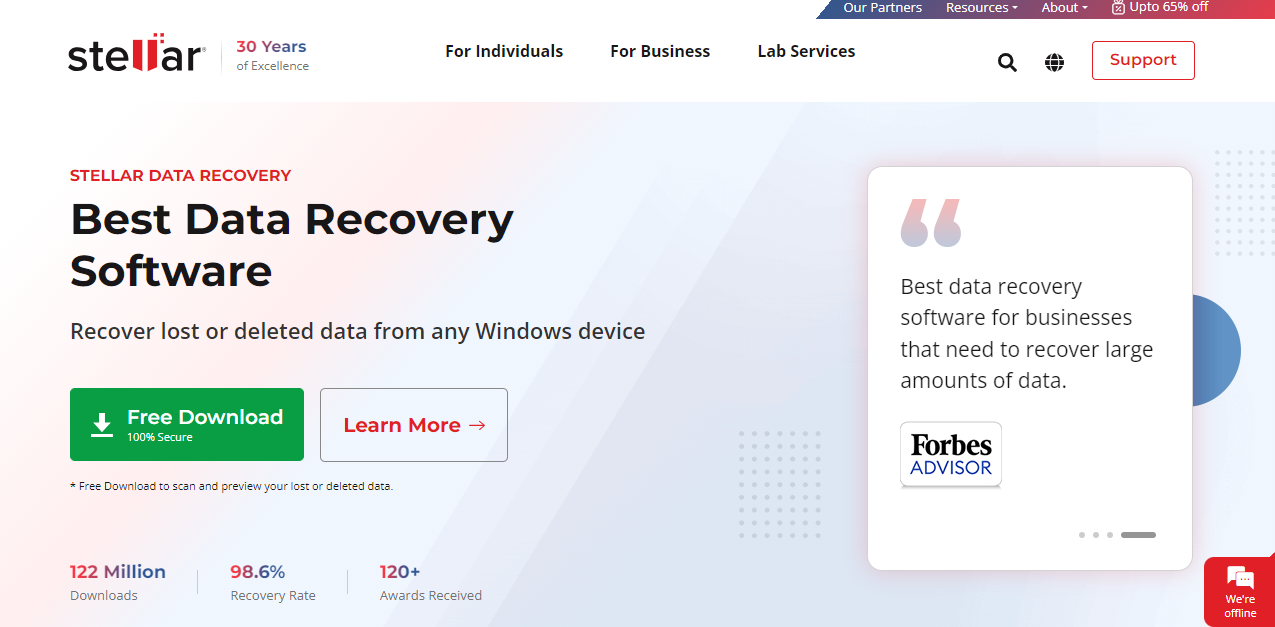
Stellar Data Recovery is a robust recovery software that empowers users with its reliable recovery tool, ensuring a high success rate.
Ideal for both advanced users and beginners, its simple interface and advanced features make it a popular choice for data recovery.
From recovering individual files to tackling partition loss, Stellar offers an extensive range of solutions with its smart data recovery software.
Features
- Data recovery from any storage device
- Recovery from corrupt hard drives
- Custom file recovery
- Advanced file search
- Disk image for speedy recovery
- Can clone disk to avoid disk failure
- SMART Drive Monitor
- Disk Imaging for quick recovery
- RAW Recovery
- Recovers from encrypted drives
Top 3 Features of Stellar Data Recovery
1. Data Recovery from Any Storage Device
Stellar Data Recovery is versatile and efficient. It can recover lost or deleted data from various types of storage devices, including hard drives, SSDs, USB drives, SD cards, and more.
This extensive compatibility makes it a go-to smart data recovery software.
2. Disk Imaging for Quick Recovery
Stellar allows you to create a complete disk image file. This feature is particularly useful when dealing with failing, fragmented, or corrupt drives.
By imaging the disk, you can perform data recovery operations without causing additional harm to the original source.
3. Recovery from Encrypted Drives
Stellar Data Recovery stands out with its ability to recover data even from encrypted drives.
As long as you have the password, the software can scan the encrypted disk and recover your lost or deleted data.
Pros
- Wide range of supported devices and file systems
- Can recover data from encrypted drives
- Disk imaging and cloning features
- User-friendly interface
- Fast scanning speed
Cons
- Full recovery requires a paid version
- Advanced features might be complex for beginners
- Scanning paused can’t be resumed
- Some files might not be previewed
- Might not recover all files in some cases
Pricing
- Free Download
Conclusion
Stellar Data Recovery is a powerful tool that offers extensive and reliable data recovery solutions. Its unique features and user-friendly interface make it an ideal choice for a smart data recovery software.
6. Recuva
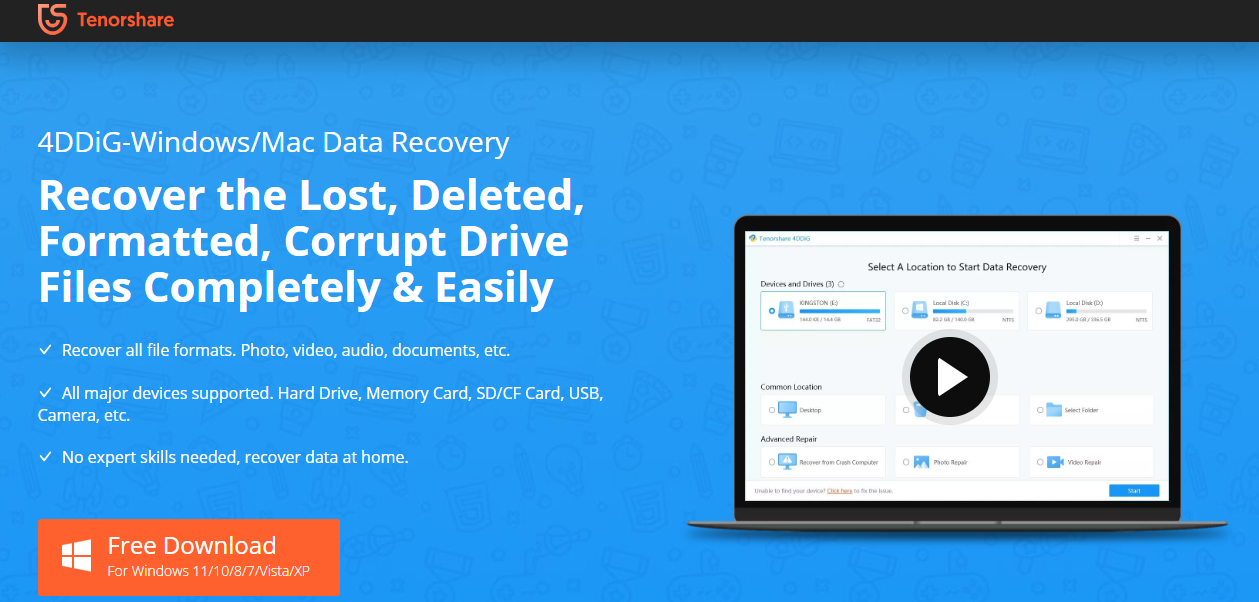
Recuva offers a portable and bootable version as a flexible and powerful tool among smart data recovery software options.
It caters to various file formats and storage device types, ensuring a higher recovery rate.
Recuva proves to be a resilient recovery tool even in the face of accidental file deletion or drive failure.
Its additional capabilities include deep scans, recovery from MP3 players, and more, making it an excellent choice for all your data recovery needs
Features
- Advanced file recovery
- Securely delete files
- Deep scan
- Recovery from damaged disks
- Military-standard deletion
- Portable version
- Full Windows OS support
- Supports all types of files
- Preview screen
- Virtual hard drive support
Top 3 Features of Recuva
1. Advanced File Recovery
Recuva’s advanced file recovery feature ensures a high success rate for recovering lost or deleted files.
Whether the loss is due to accidental deletion, a virus, or system crash, Recuva can retrieve various file types from your storage device.
2. Deep Scan
Recuva’s deep scan comes into play for more complex data recovery scenarios.
This comprehensive scan dives deeper into your storage device, retrieving even those files that quick scans might miss.
Despite taking a bit longer, the recovery results are impressive.
3. Recovery from Damaged Disks
Unlike some other data recovery tools, Recuva can even retrieve files from disks that have been damaged or formatted.
This robust feature allows you to rescue essential data from seemingly hopeless situations.
Pros
- Ability to recover a wide range of file types
- Secure file deletion feature
- Deep scan for thorough recovery
- Portable version available
- User-friendly interface
Cons
- No phone support is available
- Scans can sometimes be slow
- May recover files with original names lost
- Limited features in the free version
- Full recovery requires a paid version
Pricing
- Free Download for Windows
Conclusion
Recuva offers a variety of powerful features that make data recovery a seamless process.
Its user-friendly interface and advanced file recovery capabilities make it a reliable smart data recovery software.
Comparing Smart Data Recovery Software
| Feature / Software | ShareArchiver | Disk Drill | EaseUS | Wondershare Recoverit | Stellar | Recuva |
| Data Recovery | ✓ | ✓ | ✓ | ✓ | ✓ | ✓ |
| File Archiving | ✓ | ✗ | ✗ | ✗ | ✗ | ✗ |
| Data Deduplication | ✓ | ✗ | ✗ | ✗ | ✗ | ✗ |
| Disk Health Monitoring | ✗ | ✓ | ✗ | ✗ | ✓ | ✗ |
| Emergency Data Recovery | ✓ | ✗ | ✓ | ✓ | ✗ | ✗ |
| Hard Disk Damage Recovery | ✗ | ✗ | ✓ | ✓ | ✓ | ✓ |
| External Device Recovery | ✓ | ✓ | ✓ | ✓ | ✓ | ✓ |
Best of Best
ShareArchiver stands out for its holistic approach towards data management and recovery. Apart from its efficient disaster recovery optimization, it offers secure file archiving and intelligent data deduplication.
Its user-friendly graphical user interface, coupled with role-based access control, ensures a secure and efficient data recovery process.
2. Disk Drill
Disk Drill is known for its extensive compatibility and advanced data recovery features. It’s byte-level backups and file system reconstruction capabilities ensure a comprehensive data recovery process.
Moreover, the user-friendly interface and free data recovery option of up to 500 MB make it popular among users.
3. EaseUS Data Recovery Wizard
EaseUS provides a powerful solution for diverse data loss scenarios.
It boasts an advanced algorithm that can recover data from various storage devices, including disk partitions, USB drives, optical drives, and even corrupted drives.
Its user-friendly interface and preview option before recovery add to its robust performance.
Final Verdict
Through the course of this blog, we have explored various smart data recovery software, each with its unique features and capabilities. These tools are incredibly powerful and can often turn a data loss disaster into a minor inconvenience.
However, remember that prevention is always better than cure.
Regular backups and safe computing practices should go hand in hand with having reliable recovery software at your disposal. Stay protected and ensure your valuable data is never permanently lost.
Frequently Asked Questions (FAQs)
1. What is the difference between quick scan and deep scan in smart data recovery software?
A quick scan is a faster scanning process that primarily looks for files that have been recently deleted. It’s less thorough than a deep scan.
On the other hand, a deep scan examines every sector of your storage device, making it more effective at finding lost or inaccessible data but also taking more time.
2. How does data deduplication feature work in data recovery software?
Data deduplication is a feature that identifies and removes duplicate pieces of data in your storage, optimizing storage space and improving system performance.
This process helps ensure a clean, deduplicated database, which can lead to more accurate data recovery results.
3. Can smart data recovery software recover data from encrypted drives?
Yes, some smart data recovery software, such as Stellar Data Recovery, can recover data from encrypted drives.
However, it’s important to note that you’ll typically need the password for the encrypted drive to initiate the recovery process.
4. Why is it important to stop using the storage device after data loss?
When files are deleted, they aren’t immediately removed from your storage device. Instead, their space is marked as available for use.
If new data is written to that space, it can overwrite the lost data, making recovery more difficult. So, stopping using the device immediately after data loss is crucial to maximize the chances of successful recovery.
5. What is the role of disk imaging in data recovery?
Disk imaging is a feature that creates an exact copy of your storage device, including its structure and content.
This disk image file can be useful for data recovery, especially in severe data loss or disk damage.
It allows the recovery process to occur without causing further damage to the original data source.
6. What does file system reconstruction mean in data recovery?
File system reconstruction is a process where the data recovery software attempts to rebuild lost or damaged file systems.
This is especially important when the structure and organization of files and folders are lost, as it can help recover data more efficiently.
7. Is it possible to recover specific file types with data recovery software?
Yes, most smart data recovery software allows you to specify the types of files you want to recover.
This can make the recovery process faster and more efficient if you only look for certain types of files, such as photos, documents, or emails.
8. Can data recovery software recover data from a failed or damaged hard drive?
Yes, many smart data recovery software options can recover data from a failed or physically damaged hard drive.
However, the success rate might depend on the damage’s extent and the specific software’s capabilities.
9. What are byte-level backups in data recovery software?
Byte-level backups refer to a type of backup where only the changed parts of the files are saved instead of the whole files.
This is a more efficient way of backing up data as it reduces storage requirements and improves backup and recovery times.
10. What does it mean when data recovery software offers a portable version?
A portable version of data recovery software is designed to run directly from a portable device like a USB drive.
This can be especially helpful if you cannot install software on a computer due to restrictions or if the system itself is unbootable.